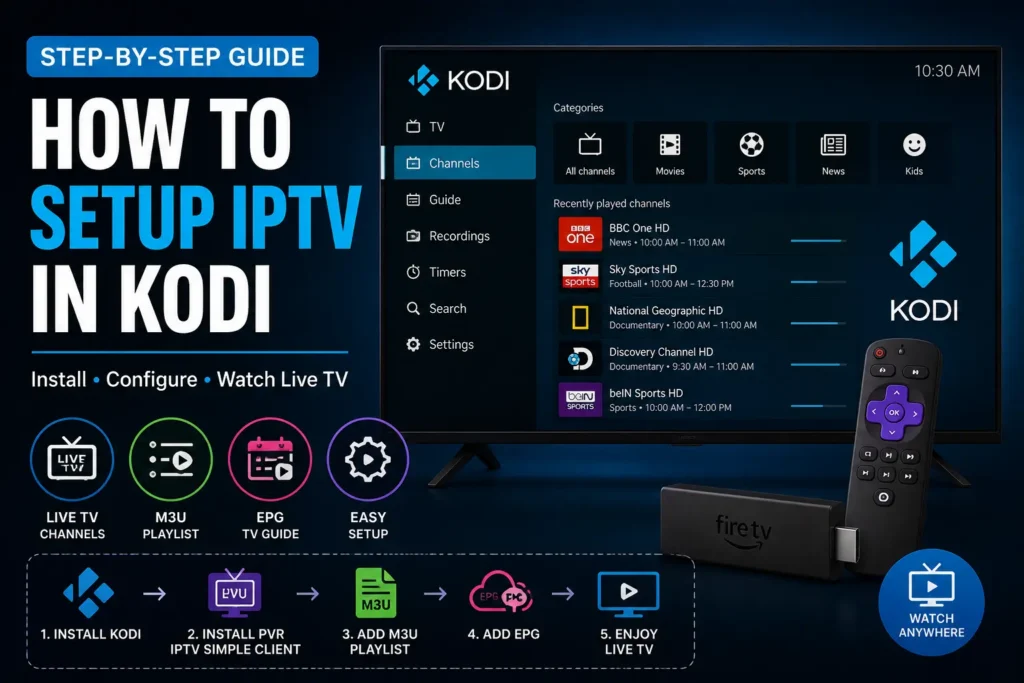
Kodi is one of the most popular media center applications, allowing users to stream movies, TV shows, music, and live television from a variety of sources. If you have an IPTV subscription, you can easily watch live TV on Kodi by using the built-in PVR IPTV Simple Client.
In this guide, you’ll learn how to set up IPTV in Kodi using an M3U playlist and EPG, so you can enjoy live TV channels, sports, movies, and more on your favorite device.
What Is Kodi?
Kodi is a free and open-source media player available for Windows, macOS, Linux, Android, Fire TV Stick, Raspberry Pi, and many other platforms.
By installing the PVR IPTV Simple Client, Kodi can play IPTV channels from an M3U playlist provided by your IPTV provider.
Important: Kodi does not include TV channels or IPTV subscriptions. You’ll need a valid IPTV subscription with an M3U playlist or Xtream Codes credentials.
What You’ll Need
Before you begin, make sure you have:
- A device with Kodi installed
- A stable internet connection
- A valid IPTV subscription
- Your M3U playlist URL
- An EPG URL (optional but recommended)
Step 1: Install Kodi
If you don’t already have Kodi installed, download the latest version from the official website.
Kodi is available for:
- Windows
- macOS
- Linux
- Android
- Amazon Fire TV Stick
- Android TV
- Raspberry Pi
After installation, launch Kodi.
Step 2: Open Add-ons
From the Kodi home screen:
- Select Settings (gear icon).
- Open Add-ons.
- Select My Add-ons.
- Open PVR Clients.
Step 3: Enable PVR IPTV Simple Client
Inside the PVR Clients section:
- Select PVR IPTV Simple Client.
- Click Enable.
- Click Configure.
This add-on allows Kodi to load IPTV playlists and TV guides.
Step 4: Add Your IPTV Playlist
Under General:
Choose one of the following options:
Remote Playlist
If your IPTV provider gave you an M3U URL:
- Select Location: Remote Path
- Enter your M3U Playlist URL
Local Playlist
If you downloaded an M3U file:
- Select Location: Local Path
- Browse to your M3U file
Click OK to save your settings.
Step 5: Add the EPG
The Electronic Program Guide (EPG) displays TV schedules and program information.
To add it:
- Open the EPG Settings.
- Enter the XMLTV EPG URL provided by your IPTV provider.
- Save the changes.
If your provider doesn’t offer an EPG, Kodi will still play channels without the TV guide.
Step 6: Restart Kodi
Close Kodi completely and reopen it.
Kodi will begin importing:
- Live TV channels
- Channel logos
- Categories
- TV Guide
Depending on the size of your playlist, this may take a few minutes.
Step 7: Start Watching IPTV
Once the import is complete:
- Go to TV from the Kodi home screen.
- Select Channels.
- Choose a channel and start streaming.
If you added an EPG, you’ll also see the TV schedule for supported channels.
Why Use Kodi for IPTV?
Kodi offers many advantages for IPTV users:
- Free and open-source
- Supports M3U playlists
- EPG integration
- Multi-platform compatibility
- Highly customizable
- Supports HD, Full HD, and 4K streams
- Large community support
Troubleshooting
Channels Don’t Load
- Verify your M3U URL.
- Make sure your IPTV subscription is active.
- Restart Kodi.
No TV Guide
Check that your XMLTV EPG URL is correct and refresh the guide.
Buffering Issues
- Use a faster internet connection.
- Restart your router.
- Close background applications.
- Use a wired connection whenever possible.
Best Devices for Kodi IPTV
Kodi works well on many devices, including:
- Amazon Fire TV Stick
- Android TV
- Google TV
- NVIDIA Shield TV
- Windows PC
- macOS
- Linux
- Raspberry Pi
Frequently Asked Questions
Is Kodi free?
Yes. Kodi is completely free and open-source.
Does Kodi include IPTV channels?
No. Kodi is only a media player. You’ll need your own IPTV subscription.
Can I use Kodi on Fire TV Stick?
Yes. Kodi works very well on Amazon Fire TV Stick and is one of the most popular platforms for IPTV streaming.
Does Kodi support 4K IPTV?
Yes. Kodi supports HD, Full HD, and 4K streaming, depending on your device and IPTV provider.
Final Thoughts
Setting up IPTV in Kodi is quick and straightforward. With the PVR IPTV Simple Client, you can load your M3U playlist, add an EPG, and enjoy live TV through Kodi’s powerful and customizable interface.
Whether you’re using a Fire TV Stick, Android TV, Windows PC, or another compatible device, Kodi provides a reliable way to stream IPTV content. Just remember that Kodi does not include TV channels—you’ll need a valid IPTV subscription from a trusted provider to get started.