How to Use an M3U Link in an IPTV Player
Learn how to use an M3U link in an IPTV…

Video on Demand IPTV (VOD IPTV) allows users to watch…
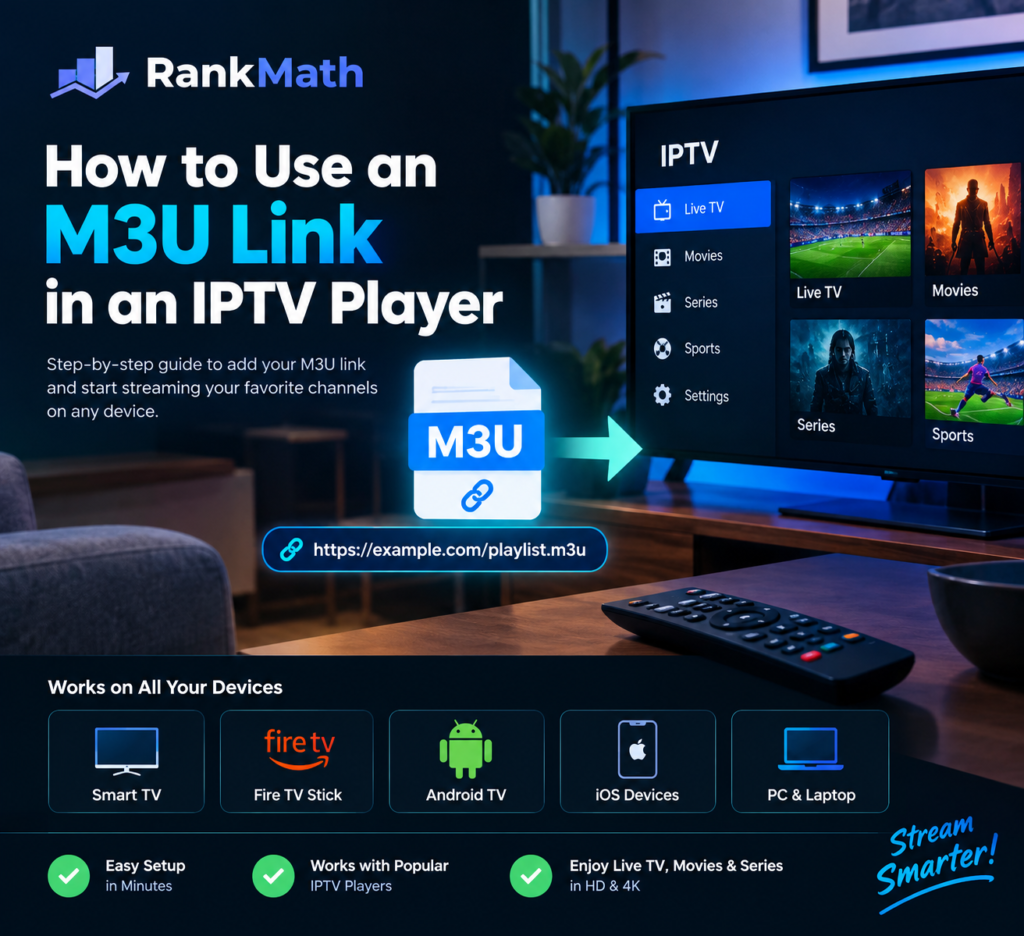
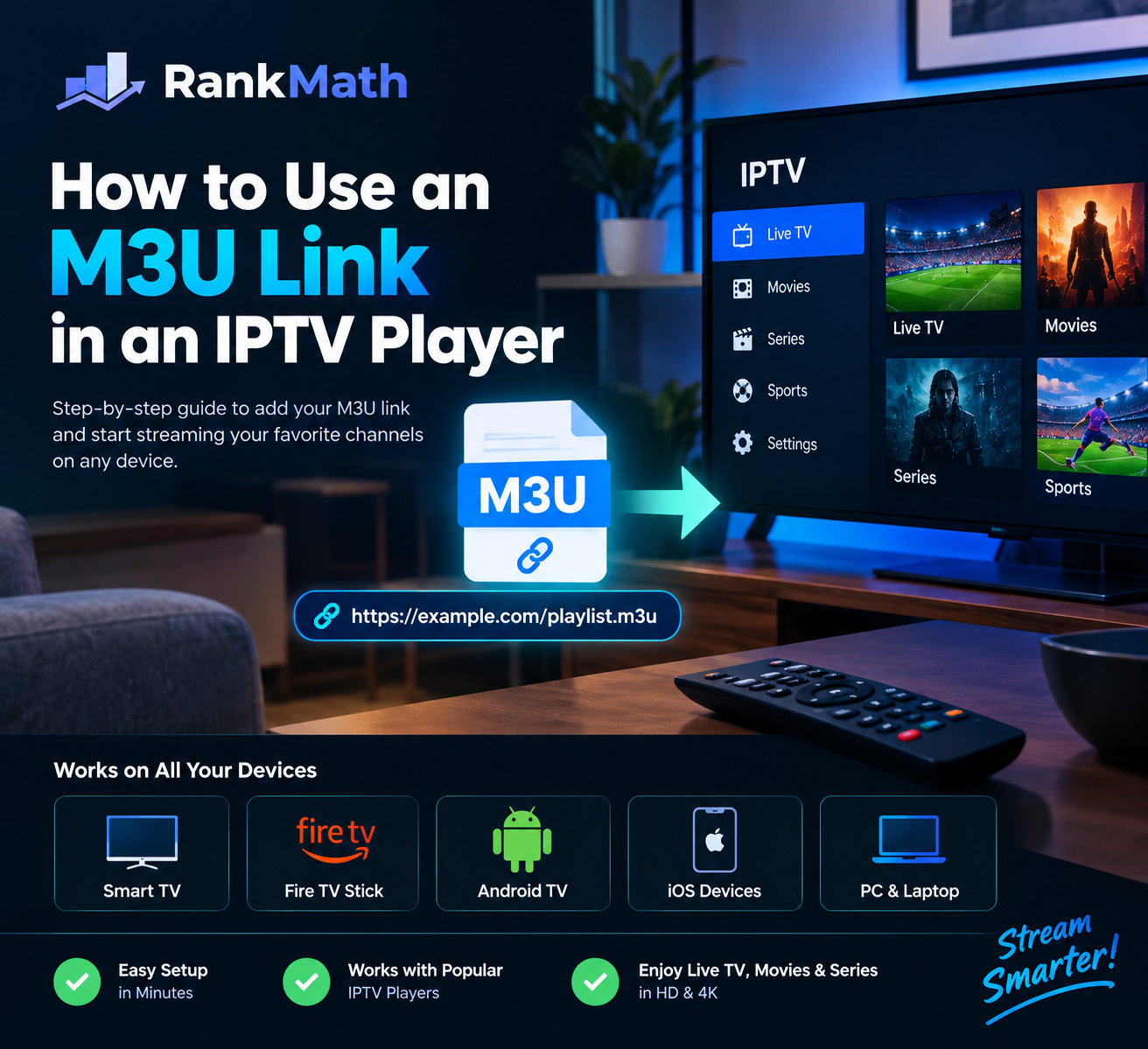
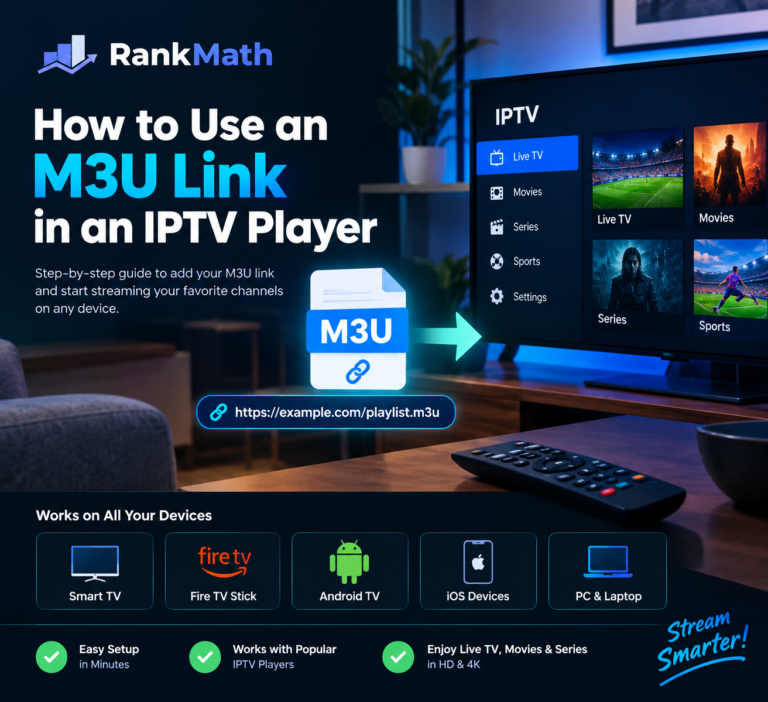
An M3U link is a playlist URL that helps compatible IPTV players load live TV channels and, depending on the service, video-on-demand content. If your provider has supplied an M3U URL, you can usually add it to a supported player without downloading a separate playlist file. This guide explains how to use an M3U link in an IPTV player, what you need before starting, and how to solve common setup problems.
An M3U link is a web address that points to a media playlist. In IPTV, the playlist may contain channel names, stream addresses, and other information that a compatible app uses to organize content. Some providers give you a URL ending in .m3u or .m3u8, while others supply a longer playlist URL with account details included.
Only use an M3U link from a service you trust and are authorized to access. Treat private playlist URLs like passwords: avoid posting them publicly or sharing screenshots that reveal the full address.
Before adding your playlist, make sure you have a valid M3U URL from your provider, a compatible IPTV player, and a reliable internet connection. Check whether your provider requires a particular app or device, because not every player supports every playlist format or feature.
If the provider supplied separate server details, a username, and a password instead of an M3U URL, check its setup instructions. Those details may be intended for a different login method.
The exact menu names depend on the app, but the general process is similar in many IPTV players.
Keep your M3U URL private. If it contains a token or login information, anyone who obtains it may be able to access your playlist.
On a Smart TV, Android TV, or Fire TV device, open a compatible IPTV player and look for its playlist setup screen. If typing a long URL with the remote is difficult, use the app’s supported phone pairing, QR code, or playlist management feature when available. Only enter the URL on a trusted device and through the official app.
Some televisions do not support every IPTV app. If you cannot find the player you want, check the manufacturer’s app store and the app developer’s compatibility information before installing anything from another source.
On a phone, tablet, or computer, install a player that supports network playlists. Choose the option to open or add a playlist from a URL, paste your M3U link, and save it. The player should then display the channels or media entries included in the playlist.
If the link opens as plain text in a browser, that does not necessarily mean it is broken. It may simply be displaying the playlist file rather than playing it. Copy the complete URL into the IPTV player’s playlist field instead.
If your playlist does not load, check these common causes before changing any settings:
Avoid sending your full playlist URL in public forums when asking for help. If support needs to check your account, share sensitive details only through the provider’s official, secure support channel.
Use official apps and keep your device software updated. Do not install unknown apps or browser extensions just because a website promises to fix an M3U link. Never publish your private playlist URL, and contact your provider if you think the link has been exposed. Choose services that have the rights to distribute the channels and content they offer in your region.
Not always. If your provider gives you an M3U URL, a compatible player can usually load the playlist directly from the internet. A local M3U file is another option when your provider supplies one and your player supports it.
That depends on your provider’s terms and device limits. Check the service rules before adding the playlist to multiple devices at the same time.
The playlist may load successfully while an individual stream is unavailable, restricted, or temporarily offline. Refresh the playlist, test your connection, and contact your provider if the issue continues.
No. The M3U link provides playlist information, while the IPTV player is the app that reads the playlist and presents compatible streams for playback.
Using an M3U link in an IPTV player is usually straightforward: open a compatible app, choose the option to add a playlist by URL, paste the link from your provider, and load it. If it does not work, check the URL, connection, player compatibility, and account status. Use private playlist links carefully and access content only through services authorized to distribute it.