M3U Playlists IPTV Sports: A Complete Beginner’s Guide
Learn what M3U sports playlists are, how they work with…


Learn what M3U sports playlists are, how they work with…

Experiencing IPTV buffering problems? Learn how to diagnose slow or…

Learn how to evaluate an IPTV free trial in Germany,…

Are you dealing with IPTV buffering problems, frozen channels, constant loading, or streams that stop every few minutes? Buffering can interrupt live TV, films, and sports, but it does not always mean your internet plan is too slow. The cause may be weak Wi-Fi, network congestion, an outdated device, an IPTV player setting, or a problem with the streaming provider.
Buffering happens when a streaming device cannot receive video data quickly or consistently enough to keep playback running. The player pauses while it loads more data. You may see a spinning circle, a frozen picture, delayed playback, or a stream that repeatedly restarts.
A speed test can help, but one result does not tell the whole story. A connection may have a high download speed and still suffer from weak Wi-Fi coverage, interference, packet loss, or short interruptions. It is important to test the connection on the same device you use for IPTV.
Before changing settings, identify when the issue occurs. If every streaming app buffers, your home network or device may be involved. If only one IPTV app or a specific channel has trouble while other services work normally, the issue may be limited to that app, stream, or provider. These clues help narrow the cause, but they do not prove it on their own.
Live streaming needs a steady connection. Internet speed can drop when the network is busy, the signal is weak, or the connection from your internet service provider is experiencing problems. A connection that fluctuates may cause IPTV buffering even if a speed test occasionally shows a good result.
Your router may be too far from the Smart TV, Fire TV Stick, Android TV box, or other streaming device. Thick walls, floors, furniture, and nearby wireless equipment can reduce signal quality. Wi-Fi congestion can also affect performance, especially in busy homes or apartment buildings.
Large downloads, cloud backups, video calls, online gaming, and other streams can compete for available bandwidth. If IPTV buffers mainly when other people are using the internet, network congestion may be contributing to the problem.
Sometimes the issue is outside your home. A particular channel or stream may be unavailable, overloaded, or experiencing a temporary technical fault. If your internet works normally and other apps play smoothly, contact the IPTV provider and report the affected channel, time, device, and error message. Ask whether the stream is currently experiencing an outage.
Older streaming devices may have limited memory or processing power. An outdated app, device software, or a full app cache can also cause playback issues. Too many apps running in the background may make performance worse.
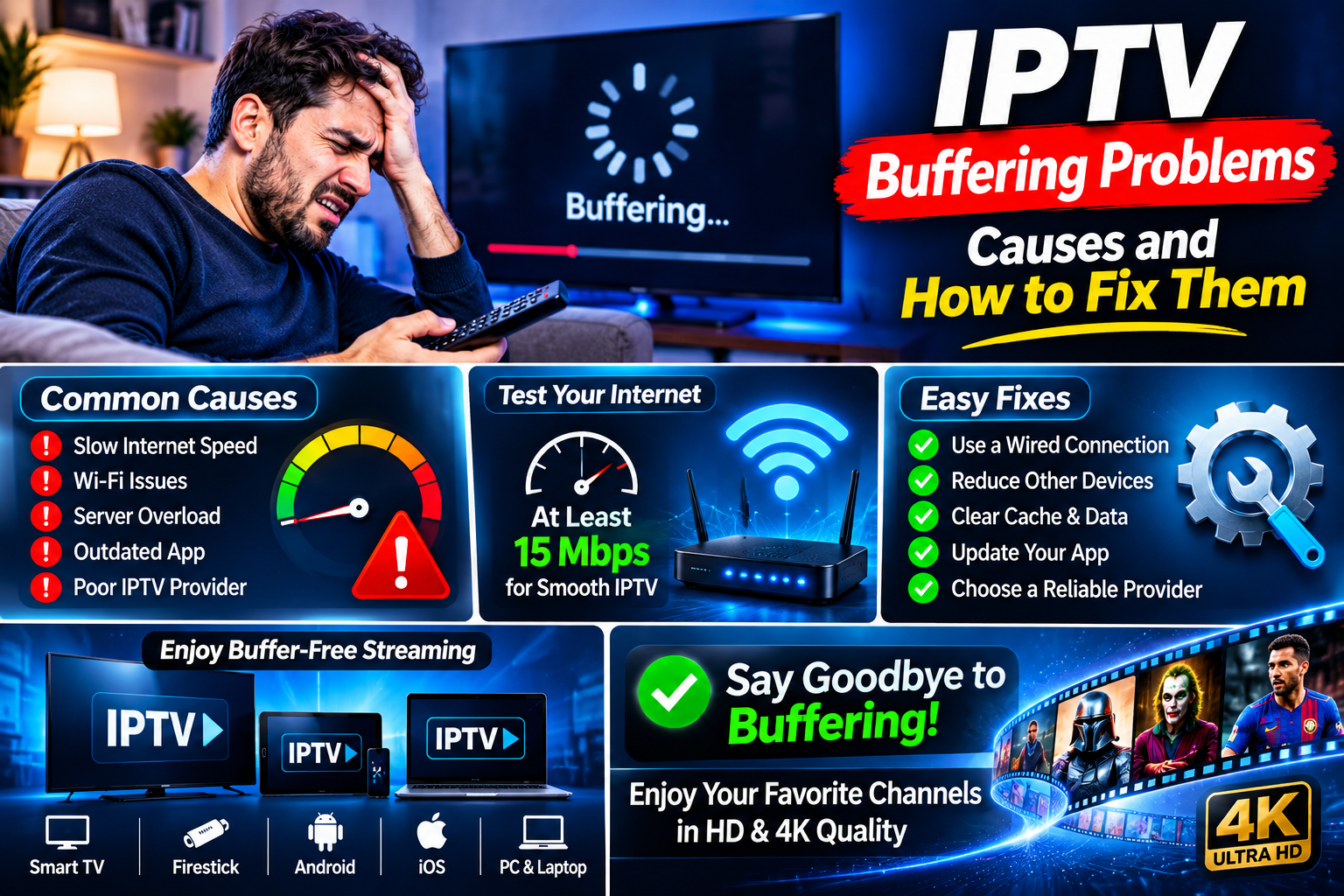
Try the following steps one at a time. After each change, play the same channel or video again so you can tell whether the fix helped.
Run a speed test using the device connected to your TV, not only a phone in another room. Compare the result at different times of day and repeat the test if the connection seems inconsistent. Check your IPTV provider’s published bandwidth recommendations, if available, and remember that stable performance matters as much as the peak download figure.
You can use Fast.com to check download speed. For additional troubleshooting, Netflix explains how to test a connection and investigate buffering in its official streaming troubleshooting guide.
A wired Ethernet connection can provide a more consistent link than Wi-Fi. If your TV or streaming box has an Ethernet port, connect it directly to the router and test playback again. If you cannot use a cable, move the device closer to the router and avoid placing the router inside a cabinet or behind large objects.
Temporary network or device problems can sometimes be cleared with a restart. Turn off the streaming device. Unplug the router and modem from power for around 30 seconds, reconnect them, and wait until the internet connection is fully restored. Then restart your TV or streaming box and test IPTV again. Avoid repeatedly unplugging equipment while it is updating or restarting.
Pause large downloads, game updates, cloud backups, and other high-bandwidth activities while testing IPTV. Ask other household members to pause unnecessary streams temporarily. If playback improves, your network may be congested or your internet plan may not provide enough capacity for simultaneous use.
Place your router in an open, central position and keep it away from thick walls and sources of interference. If your router supports both 2.4 GHz and 5 GHz Wi-Fi, test both bands: 5 GHz can offer higher speeds at shorter range, while 2.4 GHz may reach farther but can be more congested. Choose the network that performs more reliably where your TV is located.
Exit apps you are not using and fully close the IPTV player before reopening it. If the player offers a cache-clearing option, use that option carefully. Clearing cache is different from clearing app data: clearing data may remove saved playlists, login details, or preferences, so make sure you have the information needed to set the app up again before doing it.
Check for available updates for your Smart TV, Fire TV Stick, Android TV box, operating system, and IPTV player. Updates can fix compatibility and playback bugs. Install updates from the device’s official settings or app store, then restart the device and test again.
If your IPTV app or service lets you select stream quality, test a lower resolution temporarily. A lower-quality stream may use less bandwidth and help identify whether your connection can sustain the original quality. If the stream only works at a lower setting, investigate network stability and provider requirements before assuming that a faster internet package is the only solution.
Try several channels, including channels with different video qualities, and test another legitimate streaming app. If only one channel buffers, report that specific stream to your provider. If all apps and devices have problems, focus on your home network or contact your internet service provider. If only one device has trouble, investigate that device or its Wi-Fi connection.
If the basic checks do not solve the issue, contact the relevant support team. Give them useful details: the device model, app name and version, connection type, approximate time of the problem, affected channels, and whether other streaming services work. Your internet provider can check for local outages or line faults; your IPTV provider can investigate its app or stream. Use services that are authorised to distribute the content you watch.
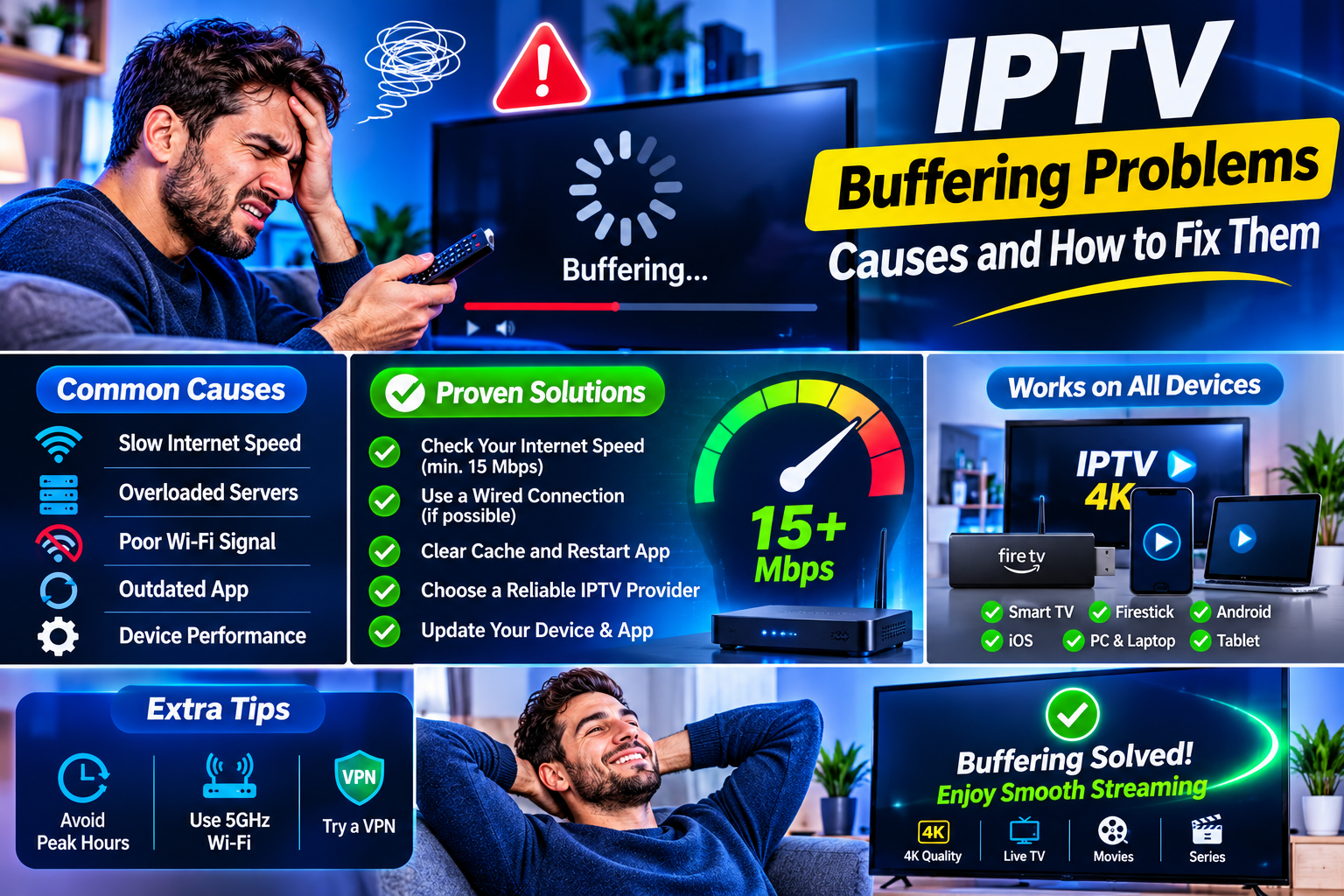
The best troubleshooting steps depend on your device. On a Smart TV, check for system and app updates and test the TV’s network connection. On a Fire TV Stick, restart the device, close unused apps, and check for software updates. On an Android TV box, check available storage, close background apps, and make sure the player is compatible with your device.
If you need help with installation, read our guides on setting up IPTV on Android and setting up IPTV in Kodi. You can also learn how to use an M3U link in an IPTV player.
No. A faster package may help when your available bandwidth is genuinely insufficient, especially when several people stream or download at the same time. However, it will not automatically fix a weak Wi-Fi signal, faulty router, device limitation, app bug, or provider-side stream problem. Diagnose the issue first so you do not pay for a speed upgrade that does not address the cause.
A high speed-test result does not guarantee a stable connection. Wi-Fi interference, packet loss, network congestion, router issues, device performance, or a problem with a particular stream can still cause buffering. Test directly on the streaming device and compare wired and wireless connections if possible.
Evening buffering can be related to increased household internet use, local network congestion, or higher demand on a streaming service. Compare speed and playback at different times, and check whether other apps are affected too. If only one service or channel has problems, contact its support team with the time and details.
A VPN is not a general buffering fix. It can sometimes change the network route, but it can also reduce available speed or add latency. First test your connection without changing network settings. Only use a VPN where lawful and consistent with the terms of the services you use; do not use it to bypass geographic or licensing restrictions.
If your device or player provides a cache-clearing option, it may help with temporary app issues. Check the app’s instructions first. Do not select Clear Data or reset the app unless you know how to restore your playlist and settings.
If your internet connection and other streaming apps work normally but a particular IPTV stream repeatedly fails, the issue may be with that stream or service. Test more than one channel and contact the provider with timestamps and device details. This is a useful diagnostic clue, not definitive proof of a server fault.
The best way to solve IPTV buffering problems is to identify where the interruption starts. Test your connection on the streaming device, improve Wi-Fi or use Ethernet, reduce network traffic, restart and update your equipment, and compare different channels and apps. If the issue appears limited to one stream, ask the provider to investigate it. A careful step-by-step approach is more effective than changing several settings or upgrading your internet plan without knowing the cause.